
Use optional folders to organize snippets, add tags for the ways you use them, and mark a few favorites for quick access. This guide organizes a saved Work sign-off snippet into a Work folder, gives it an Email tag, and checks that it appears in the right library views.
You need at least one saved snippet. Library organization does not require Accessibility access. Save any unfinished edits before you start moving between snippets.
1. Decide what the folder and tag should describe
A snippet can have one folder or No folder, and it can have several tags. Every snippet appears in All Snippets, whether or not you assign a folder. For this example, Work describes the part of your life the sign-off belongs to, while Email describes where you use it.
This gives you two ways to find the same content. The Work folder can contain a sign-off, a meeting invitation, and a project update. The Email tag can also include a personal sign-off stored in another folder.
Start with names that match how you look for content. A small library may not need folders at all. The sidebar shows No folders yet until you create one, and No tags yet until you create a tag. Add a tag when it helps you gather snippets that belong in different folders.
2. Create the Work folder
Open the library from Tapiri’s menu-bar menu with Open Dashboard. Click the + beside Folders in the sidebar to open New Folder.
- Enter
Workin Folder name. - Click Create Folder. The dialog closes and Work appears in the sidebar.
Select your saved sign-off. Expand Snippet Options in its editor and change the Folder control to Work, then click Save or press ⌘S. Choose No folder here whenever you want to remove a snippet’s folder assignment.
Click Work in the sidebar. The sign-off should appear in that folder’s list. Creating a folder and assigning a snippet are separate actions, so check both before continuing.
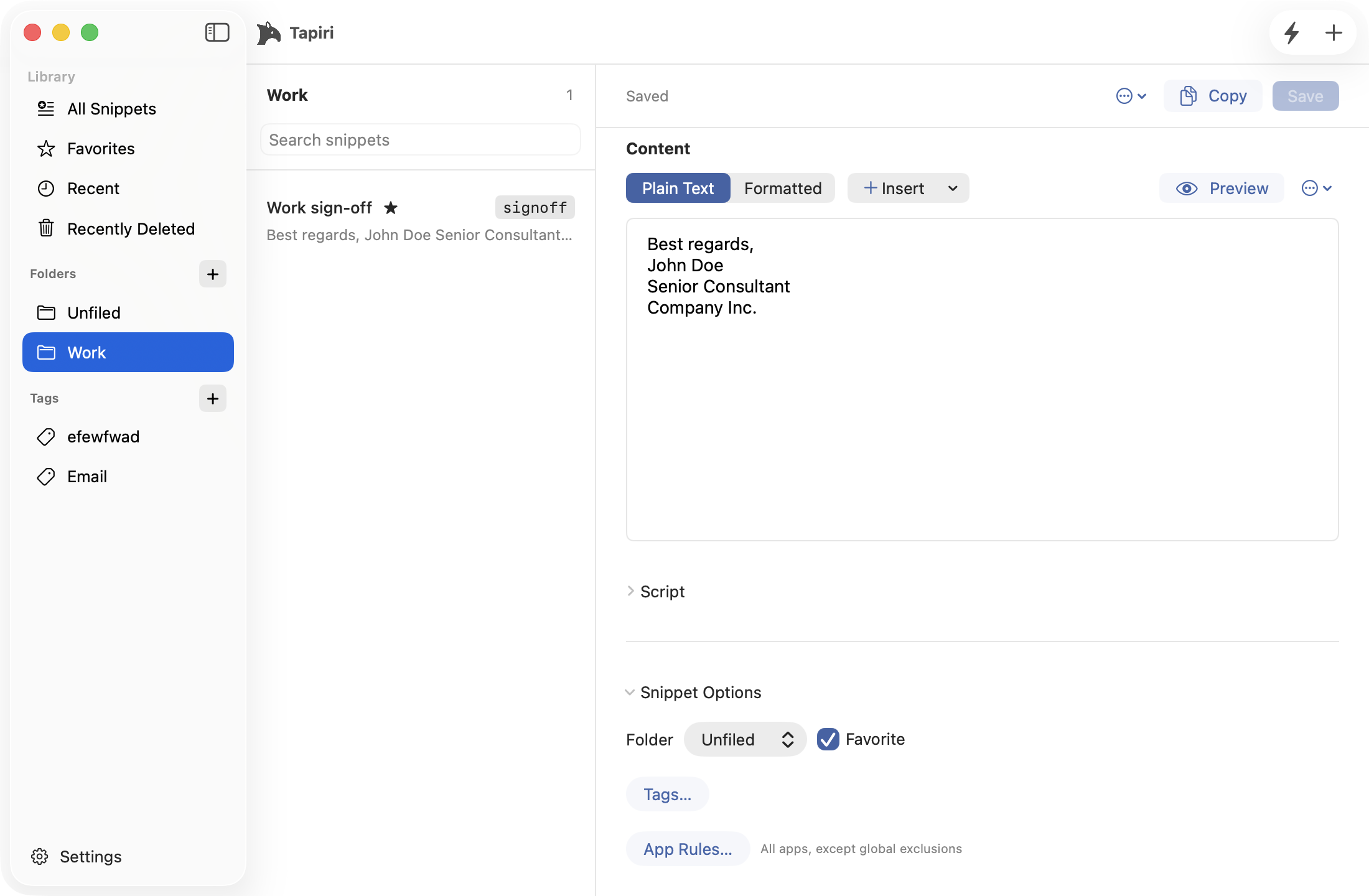
Select Work in the sidebar to see the snippets stored in that folder.
3. Add an Email tag
Click the + beside Tags in the sidebar to open New Tag. Enter Email in Tag name, then click Create Tag. The dialog closes and Email appears in the sidebar.
Select the sign-off and expand Snippet Options, then click Tags. Turn on Email in the Snippet Tags window, choose Done, and Save the snippet.
Now click Email under Tags in the sidebar. The sign-off should appear there too. It still belongs to Work; selecting a tag does not move it to a different folder.
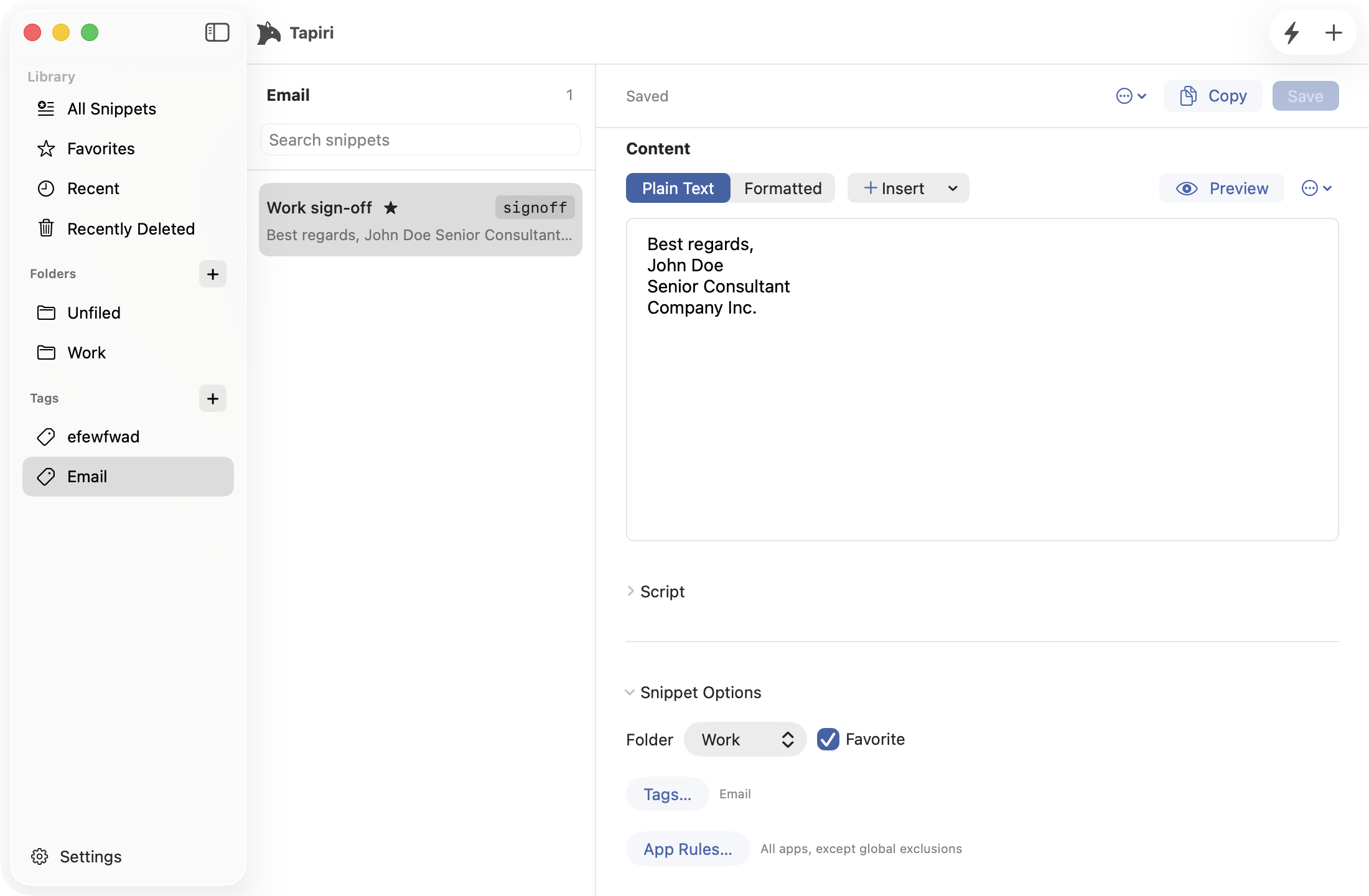
Work sign-off appears under Email while keeping Work as its home folder.
You can select more than one tag for a snippet. For example, a project update could have Email and Client Work tags. Create those tags with the sidebar’s + button first, then assign them through the snippet’s Tags window.
4. Mark the snippets you reach for most
With the sign-off selected, expand Snippet Options, turn on Favorite and Save. Click Favorites in the sidebar to confirm that it appears.
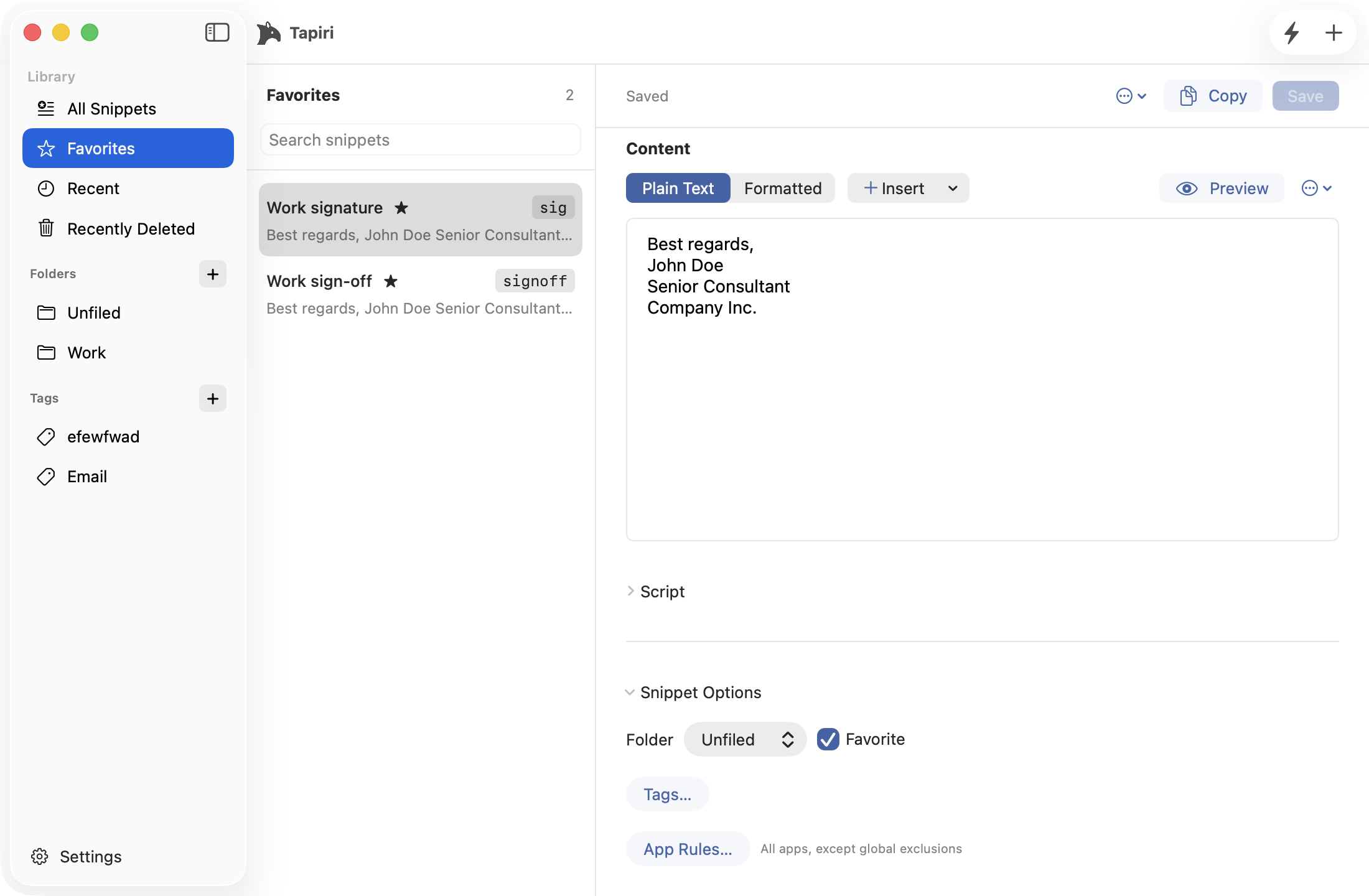
Favorites brings together starred snippets, including Work signature and Work sign-off.
Use favorites for the handful of snippets you want close at hand. Quick Search has a Favorites filter too, so this selection helps when you’re writing in another app.
To remove a favorite later, turn off the snippet’s Favorite control and save again. Its text, folder, and tags remain available.
5. Search the right part of the library
The field above the snippet list is labelled Search snippets. Its scope follows your sidebar selection. Searching while Work is selected looks within Work; searching while Favorites is selected looks within your favorites.
Choose All Snippets before searching across the library. Try the snippet’s name or a phrase from its content, then clear the query when you want to browse the full list again.
Fix a missing snippet or tidy an old group
If a snippet seems to have disappeared, select All Snippets and clear the search. Then check its saved Folder, Tags, and Favorite settings. An empty filtered list does not mean the snippet was deleted.
To rename a folder or tag, right-click it in the sidebar and choose Rename Folder or Rename Tag. Edit the prefilled name and click Save.
To remove one, right-click it and choose Remove Folder or Remove Tag, then confirm. Removing a folder keeps its snippets in All Snippets with No folder selected. Removing a tag clears that tag from its snippets. Saved content and unfinished drafts are preserved.