

Quick Search lets you find saved text by words you remember from it. You can search for “sign-off” or part of a reply, choose the result, and insert it without recalling its abbreviation.
This walkthrough uses an ordinary plain-text snippet already saved in Tapiri. A snippet can have a blank abbreviation and still appear in Quick Search. Direct insertion requires an active trial or license, Accessibility access, and a supported writing field. Manual copying remains available when insertion is unavailable.
1. Put the cursor where the text should go
Open a blank TextEdit document and click in its body. Start with an empty document so it’s easy to see the result.
Open Quick Search while that writing field is active. Tapiri captures the destination when you open the panel; switching to a different field afterward can make that destination unavailable.
The default shortcut is ⇧⌘Space: hold Shift and Command, then press Space. You can also choose Quick Search from Tapiri’s menu-bar menu.
2. Search for a phrase you remember
Type part of the snippet’s name, abbreviation, or saved content into the search box. For example, search signature if you saved the Work signature snippet from the getting-started guide.
You don’t need to type the complete title. Read the result’s name and content preview to confirm it is the right snippet. If you have several similar replies, a distinctive phrase from the content can narrow the list more usefully than a broad word such as “email.”
The Show control lets you switch between All, Favorites, and Recent. Start with All when finding something for the first time. Favorites is useful for a small set of frequently used replies; Recent helps you find content you used earlier.
Use the Up and Down arrow keys to choose a result, or select it with the pointer. Press Escape to close Quick Search without using a snippet.
3. Insert the selected text
For this plain-text example, click Insert when the button is available. Check the original TextEdit document. The saved text should appear at the destination you selected before opening Quick Search.
Return activates the panel’s default action, but that action depends on whether Tapiri has a usable destination. Read the button label while learning the workflow rather than assuming Return always inserts.
Quick Search uses the saved snippet. If you edited its content in the library and left those edits unfinished, return to the editor and Save before using it again.
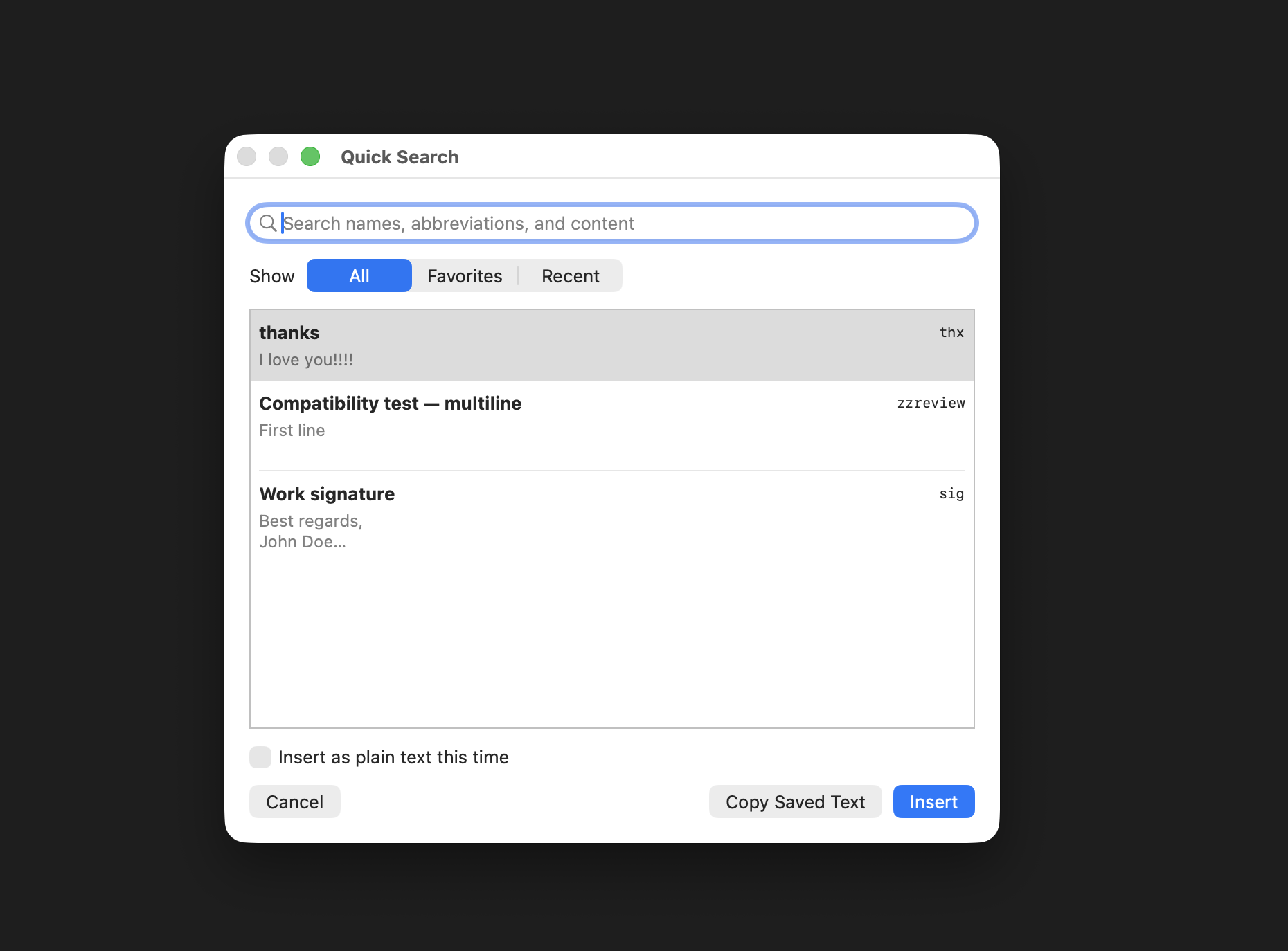
Find a saved snippet, then choose Insert to use it in your document or Copy Saved Text to copy it.
4. Copy when direct insertion is unavailable
If Tapiri cannot use the original writing field, the panel explains that you can copy the snippet instead. Choose Copy Saved Text, return to your document, click the intended position, and press ⌘V.
When execution access is unavailable, the copy action may be labelled Copy Stored Content. This guide uses plain text, so you can still retrieve that saved text without resolving a form or running anything.
If Tapiri reports that insertion could not be confirmed, look at the destination before copying. That check prevents you from pasting a second copy over a result that already appeared.
If Quick Search doesn’t open or find your snippet
Use Quick Search from the menu bar to distinguish a shortcut problem from a search problem. To change the shortcut, open Settings → Expansion → Quick Search, click the shortcut control, and press a new combination containing Command, Control, or Option. Restore Default Shortcut restores the default combination if it is available.
For missing results, switch Show to All, clear the query, and confirm that the snippet was saved. Quick Search can open while abbreviation expansion is paused, so you can keep using search without resuming automatic abbreviation matching.