
Open Settings from Tapiri’s menu, or use Settings in the dashboard sidebar. The General, Expansion, Storage, and License tabs group the app’s preferences.
Use Open Dashboard in the menu-bar menu to return to the library. The sidebar selects the part of the library you are browsing; the middle column lists matching snippets; the editor shows the selected snippet. Help → Welcome to Tapiri reopens the setup walkthrough.
Appearance, startup, and updates
In General, choose System, Light, or Dark appearance. Turn on Launch at login if you want Tapiri available after signing in. If macOS requires approval, use Open Login Items and review Tapiri’s entry.
The Updates section shows the installed version and offers Check for Updates and automatic update checks. Read the available update’s release notes before installing. Development builds may not support update checks.
If installation is postponed because work is active, finish or save that work and choose Install Downloaded Update when ready. A failed check shows an error; use Check for Updates to retry. Automatic checks do not automatically download updates.
Closing the dashboard leaves Tapiri running. Quit Tapiri stops it; Pause Expansion keeps the app open while stopping abbreviation matching.
Configure shortcuts and system access
In Expansion, click the Quick Search or Capture Snippet shortcut control and press a combination containing Command, Control, or Option. Escape cancels recording. Restore Default Shortcut resets the relevant control when the default is available.
If a shortcut conflicts with another assignment, read the warning and choose an available combination.
The defaults are ⇧⌘Space for Quick Search and ⌥⇧⌘C for Capture Snippet. Both can be used while abbreviation expansion is paused.
The System access section explains the permission Tapiri needs. Use Open Accessibility Settings to review its macOS permission. Editing and manually copying saved snippets remain available without Accessibility. If Tapiri requests Input Monitoring on your setup, follow the displayed system-access instructions.
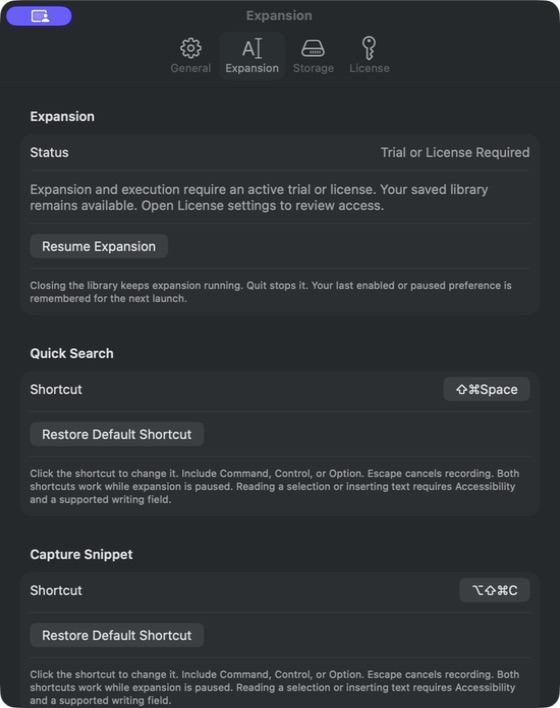
Each shortcut has its own recording control and Restore Default Shortcut button.
Manage trial and license access
Open License to review the state shown on this Mac. If offered, Start 7-Day Trial starts a trial. To activate a purchased license, enter its key and choose Activate License.
Use Refresh License to check the current activation, or Deactivate This Mac when you intend to release that Mac’s activation. Follow the result shown in the panel.
The trial can start without an account, payment card, or internet connection. Paid activation and manual license refresh need a connection; offline execution depends on the access already recorded on this Mac. Check the displayed status and expiry information rather than assuming a failed refresh extends access. Use Retry Trial Access if trial information is unavailable.
After execution access ends, your library remains available for viewing, editing, copying stored content, and export. Expansion and execution—including completing templates—require an active trial or license.
Trace an expansion that does not happen
Click the expansion status control in the dashboard toolbar for its explanation and, when available, the last attempt. Then check these in order:
- Tapiri is running and expansion is resumed.
- The edited snippet has been saved.
- You typed the saved abbreviation and its required completion key.
- The destination app is not globally excluded and is allowed by the snippet’s own rules.
- Accessibility access and trial or license access are available.
- The destination is a supported editable field.
Try the same saved plain-text snippet in a blank TextEdit document. If it works there, inspect the original destination rather than repeatedly changing the snippet. Secure or unsupported fields may not allow direct insertion.
If insertion could not be confirmed, inspect the destination before retrying or pasting manually to avoid duplicates. If Tapiri offers Recover Clipboard, read its explanation and review the content before choosing recovery.
For missing search results, clear the query, select All or All Snippets, and check Recently Deleted. For template failures, read the field or validation message, preview the draft, and Save.
For ordinary inserted text, use Undo in the destination app and inspect the result. Undo does not reverse a script’s file or network effects.
Useful dashboard shortcuts
| Action | Shortcut |
|---|---|
| New snippet | ⌘N |
| Save snippet | ⌘S |
| Find snippets in the current list | ⌘F |
| Copy saved content | ⇧⌘C |
| Close the window | ⌘W |
To expand a pasted abbreviation, paste only the shortcut at an empty selection and press its configured Space or Enter completion key within ten seconds. Immediate abbreviations use Space for this pasted-shortcut workflow.
Prepare a problem report
Choose Help → Report a Problem. Describe what you were trying to do, the destination app, the steps, and what happened. Use fictional sample text when possible.
Review the report and any optional diagnostics before sharing. The diagnostic summary includes app and system state; it excludes snippet content, clipboard content, ordinary typing, field answers, and raw logs.
Copy Report copies it, Save Report saves a file, and Open Email Draft prepares a message for you to review and send. Clear Report clears the form. Preparing a draft does not send it.