

Build a reply that asks for the recipient’s name each time you use it. The saved text stays consistent, and a fill-in form lets you supply the part that changes before inserting or copying the result.
This guide creates a reply that produces:
Hi Maya,

Thanks for sending this over. I’ll review it and get back to you.

Best,
Alex
Maya comes from a required field. The rest is saved text. You’ll use Tapiri’s visual controls throughout; no template syntax is needed.
You need an active trial or license to preview and complete the form. Use a blank TextEdit document for the first insertion check, with Accessibility access enabled. You can also complete the form and copy the result manually.
1. Start with the greeting text
In the library, choose New Snippet or press ⌘N. Enter Personalized reply as its Name. Set Trigger to Quick Search only so you can learn the form through Quick Search.
In Content, type Hi , including one space after Hi. Choose Insert → Field → Text.
Tapiri converts the content into a sequence of blocks. The existing greeting becomes a Text block, followed by a Field block. The text and field values will appear in that order in the completed reply.
2. Name the field the reader will fill in
In the Field block, enter Recipient name in Field name. Set Input to Text, leave Required on, and leave Default value (optional) blank.
A required field stops completion until you supply an answer. Leaving its default blank also means the form asks you to think about the current recipient instead of starting with a name from your saved template.
The field’s name labels the form. Its answer supplies the text in the completed reply. You don’t need to type brackets around either one.
3. Add the rest of the reply
Choose Insert → Text. A new Text block appears after Recipient name. Enter the following, starting with the comma on the first line:
,

Thanks for sending this over. I’ll review it and get back to you.

Best,
Alex
Replace Alex with your own name. The comma belongs directly after the recipient field; the blank line separates the greeting from the message.
Check that your block order is Text → Field → Text. If a block is misplaced, use its up or down arrow to move it. Tapiri joins the blocks in the order shown, so the spaces, punctuation, and line breaks in your Text blocks matter.
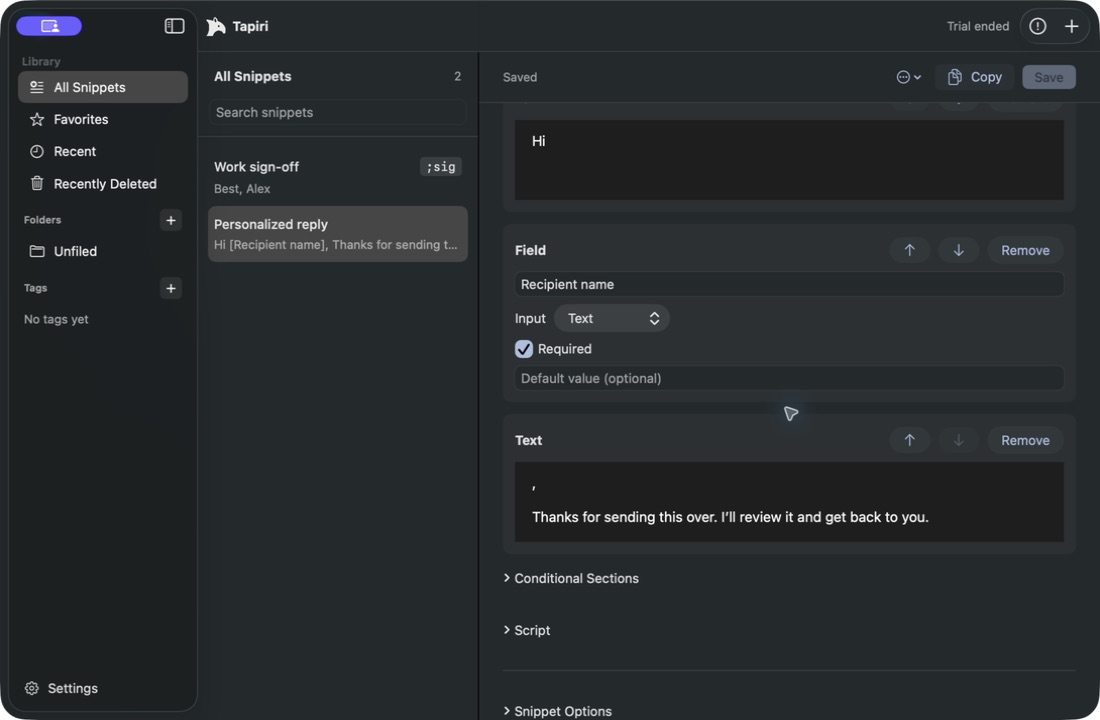
The required Recipient name field sits between two Text blocks. Keep the space after Hi and the comma in the following block.
4. Preview before saving
Click Preview. Enter Maya in Recipient name and read the Preview area. Check the greeting, blank lines, and sign-off. Choose Done to close the preview, then Save the snippet.
The preview lets you inspect the assembled reply. It does not save your sample answer as a remembered answer. To change wording, edit the appropriate Text block; to change the question, edit the Field block’s label or settings.
5. Fill in the saved reply while writing
Click inside a blank TextEdit document. Open Quick Search with ⇧⌘Space, search for Personalized reply, and select it. When a supported destination is available, choose Continue to open the form.
Enter the recipient’s name, review the completed text, and click Continue. Check the reply in TextEdit before using it in a real conversation.
For manual paste, choose Fill In & Copy in Quick Search instead. Complete the same form, click Continue, then paste the result with ⌘V.
Leave Remember this answer unchecked for recipient names that change on each use. Remembering is an explicit choice for each field; checked answers are kept locally when you complete the form. If a remembered value later becomes unhelpful, the form offers Forget saved answer.
Correct a form or formatting problem
If completion stops, look for the required-field message and fill in the missing name. If words run together or punctuation appears on the wrong line, close the form and inspect the surrounding Text blocks. Restore the space after Hi and the comma before the first line break, preview again, and save.
If you see older wording when using the snippet, save the edited template first. If insertion is unavailable, use Fill In & Copy and check the destination before pasting a second time.
To clear every remembered answer for this snippet, open Snippet Options and choose Forget All Saved Answers. Your field definitions and defaults remain in the template.
For dropdown choices, checkboxes, repeated answers, and sections that change with an answer, continue to advanced fill-in forms.