

Export a Tapiri library when you want a file you can keep elsewhere or import on another Mac. Use local backups when you want a recovery point for the library on this Mac.
This guide covers choosing an export, saving it, reviewing an import, and finding the separate full-library restore controls. Save unfinished snippet edits before you begin. Exports and backups contain saved library content; unfinished drafts are excluded.
1. Choose the file that fits your purpose
Tapiri has two export commands:
| Command | What the file includes |
|---|---|
| Export Library | Saved snippets, folders, tags, and images. Suitable for reusing the saved library without its remembered form answers. |
| Export Personal Backup | Those saved definitions plus remembered form answers, Recently Deleted entries with their original expiry dates, and app exclusions. |
| Both files include fixed snippet text and template defaults. Neither includes unfinished drafts, recent usage, app preferences, or script approvals. |
Choose Export Personal Backup when you want the additional personal state. For reusable content, choose Export Library. Check fixed text and defaults before sharing either file; excluding remembered answers does not remove personal information you wrote into snippets.
2. Save an export outside the library
With Tapiri active, open its File menu and choose the export command you need.
The save panel suggests Snippet Library.json for a reusable library or Personal Snippet Backup.json for a personal backup. Choose a recognizable filename and a location you can find again, then save.
For protection against losing the Mac itself, keep a copy in a location independent of that Mac, such as an external drive you manage. An export is a snapshot. Later edits in Tapiri do not update an existing exported file, so make another export when you want to capture newer changes.
3. Create a local recovery point
Choose File → Backups to open Local Backups. Click Back Up Now, then check the status and list of backups. Show in Finder opens the folder where these managed copies are stored.
Tapiri also checks for backup work at startup and every minute while open. A changed library is backed up after 24 hours since the last regular backup. It keeps seven regular copies plus one pre-restore copy.
These managed copies stay on this Mac. Use an external copy of your export as well if you need recovery after the computer or its storage becomes unavailable.
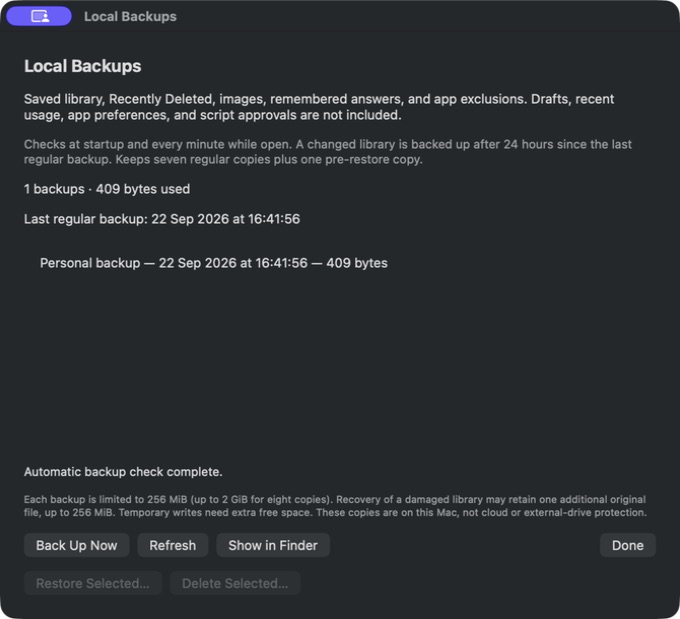
Back Up Now creates a recovery point; Restore Selected replaces the saved library with a selected copy.
4. Preview a library before importing it
Save or discard any unfinished snippet edits, then choose File → Import Library. Select a Tapiri JSON export and click Preview.
In Review Library Import, check the counts of new and matching snippets. Expand a snippet row to inspect its stored content. The preview also identifies folder or tag changes and possible abbreviation overlaps.
If the file contains matching saved identities, choose between:
- Keep existing versions: retain matching local versions.
- Use imported versions: replace matching saved versions and folder or tag names with the imported versions. Remembered answers for replaced snippets are replaced too. Matching refers to saved identities. Two separately created snippets with the same visible name may still be separate snippets, and overlapping abbreviations may need adjustment after import.
For a personal backup, app exclusions are combined with this Mac’s exclusions. Existing snippets absent from the file stay in your library.
5. Complete the import and check the result
Click Import after reviewing the choices. Tapiri displays Library Imported with the number added and replaced.
Open All Snippets and inspect a few imported entries. Check their text, abbreviations, and organization. Resolve any shortcut overlap before relying on it while writing. Imported scripts require their own review and trust before they can run; approval does not travel in the file.
If Tapiri rejects the import, read the error before retrying. Use a supported export made by Tapiri, keep the file within the displayed 256 MB transfer limit, and finish any open snippet draft. Import CSV is a separate workflow for plain-text imports from other tools.
6. Use full-library restore only for recovery
Import adds to or updates the current library. A local backup restore replaces it.
For recovery, open File → Backups, select a backup, and choose Restore Selected. Read Replace the current library? before choosing Restore Backup. The confirmation explains that current snippets, Recently Deleted entries, folders, tags, remembered answers, and app exclusions will be replaced.
Tapiri creates a recovery copy of the current saved library first. After restoring, expansion is paused and script approvals are cleared. Inspect the recovered content, then resume expansion when you’re ready.
Remove old managed backups
In File → Backups, select the copies you no longer need and choose Delete Selected. Read the confirmation before deleting: those recovery points will no longer be available. Files you exported elsewhere are separate copies.
For a spreadsheet or another text expander, use Import CSV. To recover one deleted snippet without restoring the whole library, see Recently Deleted.