
Turn a paragraph you already wrote into a reusable snippet without retyping it. Capture starts a new snippet; editing an existing snippet keeps your changes separate from its last saved version until you save.
If you have not created a snippet yet, begin with Getting Started with Tapiri.
Capture selected text
- Select the text in the app where you are writing.
- Press ⌥⇧⌘C, or choose Capture Snippet from Tapiri’s menu-bar menu.
- Check the captured content. Give it a recognizable name, choose a folder, and add an abbreviation if you want to expand it by typing.
- Choose Save Snippet.
- Open the dashboard and find the saved entry. Check its text before relying on it.
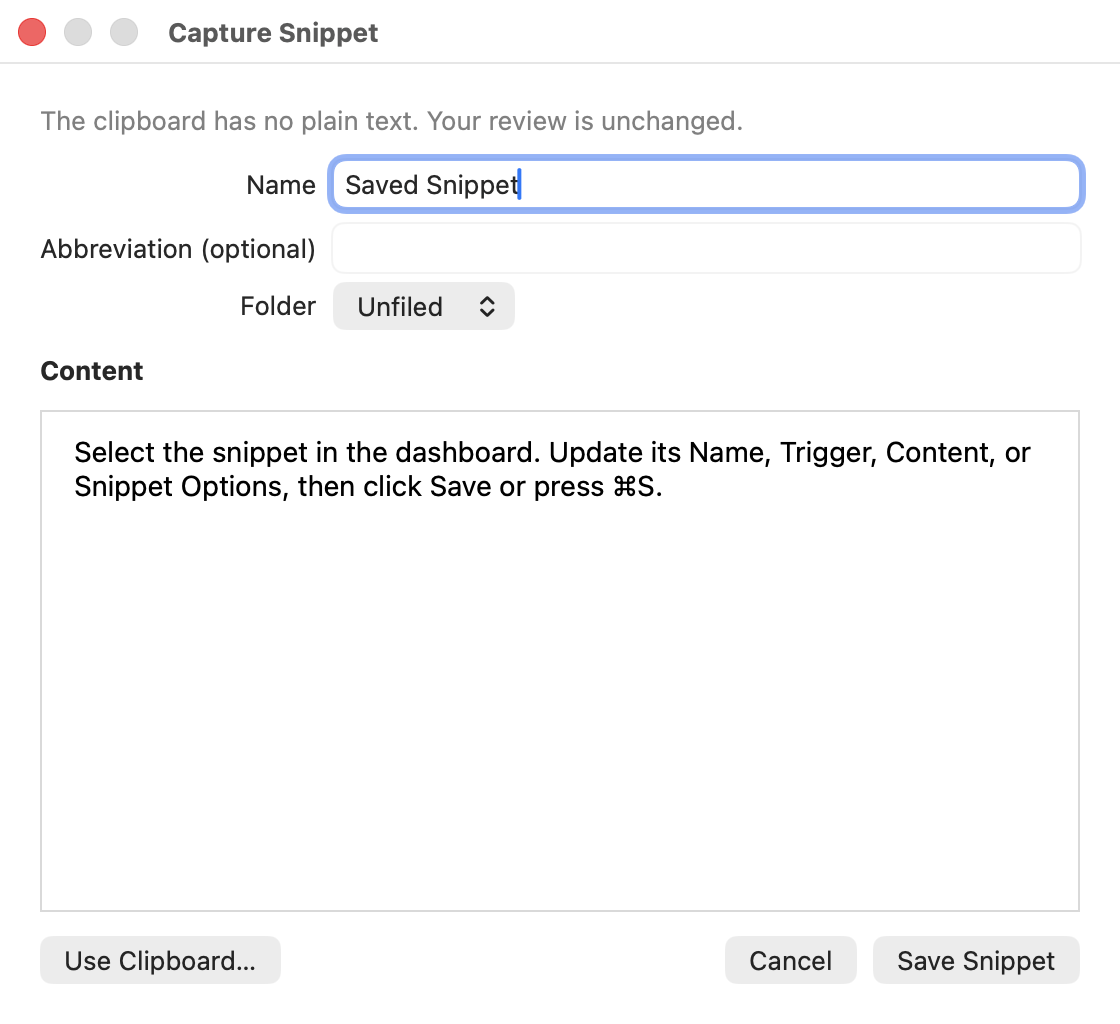
Review the content before saving. Here, the clipboard has no plain text, so the existing content is unchanged.
Capture works while abbreviation expansion is paused. Change its shortcut in Settings → Expansion → Capture Snippet.
Edit a saved snippet
Select the snippet in the dashboard. Update its Name, Trigger, Content, or Snippet Options, then click Save or press ⌘S.
Changes in the editor are a draft. Quick Search, expansion, and Copy Saved use the last saved version. If an old sentence keeps appearing, save your edits and try again.
Use Quick Search only for content you want to find by name without giving it a typed abbreviation. For abbreviation timing and app restrictions, see expansion controls.
Keep unfinished work
When a navigation or closing prompt appears, read its options before proceeding. Save activates the edited content; discarding abandons that draft. If you are offered Keep Draft, it preserves unfinished work for later without activating it.
Tapiri can recover local drafts after reopening. Review a recovered draft, finish the edits, and Save when ready. If recovery fails, use Retry Draft Recovery and read the reported error instead of overwriting the snippet.
An exported library contains saved content, not unfinished drafts. Save the changes you want to keep before making a backup or export.
Check your result
For plain text, copy the saved snippet into a blank document and compare it with the editor. For templates, use Preview to check the assembled result, then save and complete the saved form through Quick Search. Copying stored template content is not the same as completing its fields.