

If you find yourself repeatedly typing the same emails, phrases, or code snippets throughout your day, Tapiri is here to save you precious time.
Tapiri is a text expansion tool for Mac users that lets you save frequently used text snippets and insert them instantly via customizable shortcuts. It works across apps and browsers on your Mac, works fully offline to ensure your privacy, and supports advanced features like rich text, dynamic dates, and fill-in templates.
This article will introduce you to Tapiri, help you get started step-by-step, and share tips to integrate it seamlessly into your daily workflows.
Understanding Text Expansion and Shortcuts
Text expansion means converting a short trigger word or shortcut into a longer block of text automatically. For example, typing addr could instantly insert your full home address.
This simple automation saves keystrokes and reduces errors by reusing standardized content.
Tapiri lets you create snippets that you insert by typing a shortcut in apps such as email clients, browsers, chat apps, and document editors.
Set up Tapiri on your Mac
- Download and install Tapiri. Click the Try Tapiri for free button on the header, then install and open the app on your Mac.
- Follow the welcome walkthrough. It introduces your snippet library and helps you create a first snippet.
- Enable Accessibility access when prompted. Open System Settings → Privacy & Security → Accessibility, enable Tapiri, then return to the app. This lets Tapiri expand abbreviations in other apps.
Create your first snippet
An email signature is a useful starting point: it’s short, familiar, and easy to check after it expands.
1. Add a snippet
Click the + button in the top-right corner of Tapiri, or press ⌘N. Name the snippet Work signature so you can find it in your library later.
2. Choose an abbreviation
Enter sig as the abbreviation. For this example, choose Immediately as the completion setting so the signature expands as soon as you finish typing it.
3. Add your signature
Choose Plain Text for the content format. Copy the example below into the Content editor, then replace the name, role, and company with your own details.
Best regards,
John Doe
Senior Consultant
Company Inc.
The name identifies the snippet in your library. The abbreviation is what you type to trigger it. The content is what gets inserted.
4. Save it
Click the Save button in the top right of Tapiri, or press ⌘S. Save again whenever you change the abbreviation or content so expansion uses your latest edits.
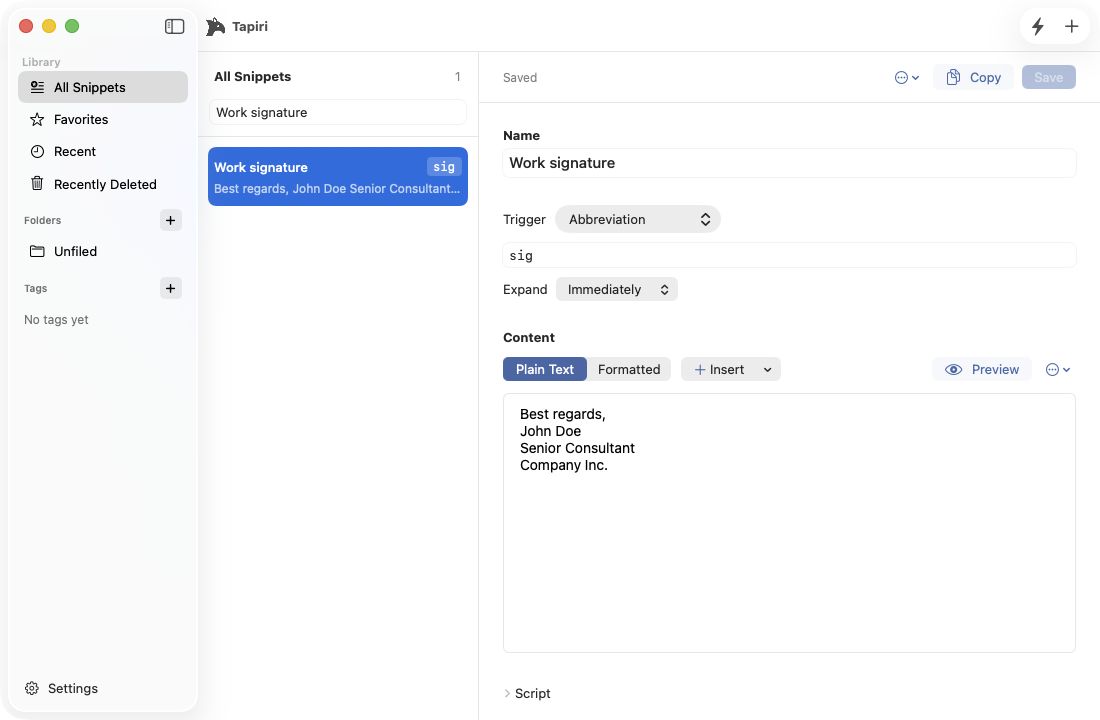
Your saved signature snippet, ready to expand when you type sig
.
Try it in a document
- Leave Tapiri running and open a blank note in Notes.
- Click in the document and type
sigyourself. - Check that the abbreviation is replaced with your signature, including its line breaks.
Once that works, try the same abbreviation in a draft in your usual email app. You can edit the inserted text just like anything else you’ve typed.
Expansion depends on the app and text field. If it doesn’t work in a particular field, use the troubleshooting steps below.
Common Use Cases
- Emails: Save common replies, greetings, or disclaimers.
- Customer Support: Insert troubleshooting steps or policy responses quickly.
- Code: Store reusable code blocks or documentation templates.
- Forms: Use fill-in snippet templates to speed up repetitive form entries.
Practice creating snippets during your daily tasks. Start small with the most repetitive phrases, then expand your library.
Common Snippets You Can Save
Start with text you’ve needed several times recently. A handful of useful snippets is easier to remember than a large library you rarely open.
| Save this | Shortcut | Use it for |
|---|---|---|
| A common reply | thx |
Acknowledging a message or document |
| Your mailing address | addr |
Filling in delivery or contact details |
| Your booking link | meet |
Arranging a call without hunting for the URL |
| A support response | help |
Reusing troubleshooting steps you often send |
| A code fragment | code |
Inserting a small block you regularly reuse |
Review each expansion before sending it, especially names, links, and details that might have changed.
Tapiri also supports formatted text, dynamic dates, and fill-in templates. These are useful when a snippet needs styling, today’s date, or a detail that changes each time you use it. Start with plain text, then explore those options as you need them.
Troubleshooting Common Issues
- Make sure Tapiri has accessibility permissions enabled in your Mac’s System Settings.
- Verify your snippet shortcuts don’t conflict with system or app shortcuts.
- Check that Tapiri is running in the background and expansion isn’t paused.
- Make sure the app you’re typing in isn’t excluded from expansion in Tapiri’s settings or the snippet’s settings.
- Consult the troubleshooting guide or email support if snippets don’t expand properly.
Next Steps
Tapiri is a powerful yet user-friendly tool that can dramatically cut down your repetitive typing on Mac. By investing a little time upfront to set up meaningful snippets, you gain hours back every week.
The next time you catch yourself retyping a familiar phrase, save it as a snippet or capture it directly from your screen.
Ready to start? Try Tapiri for free to speed up your typing today!